


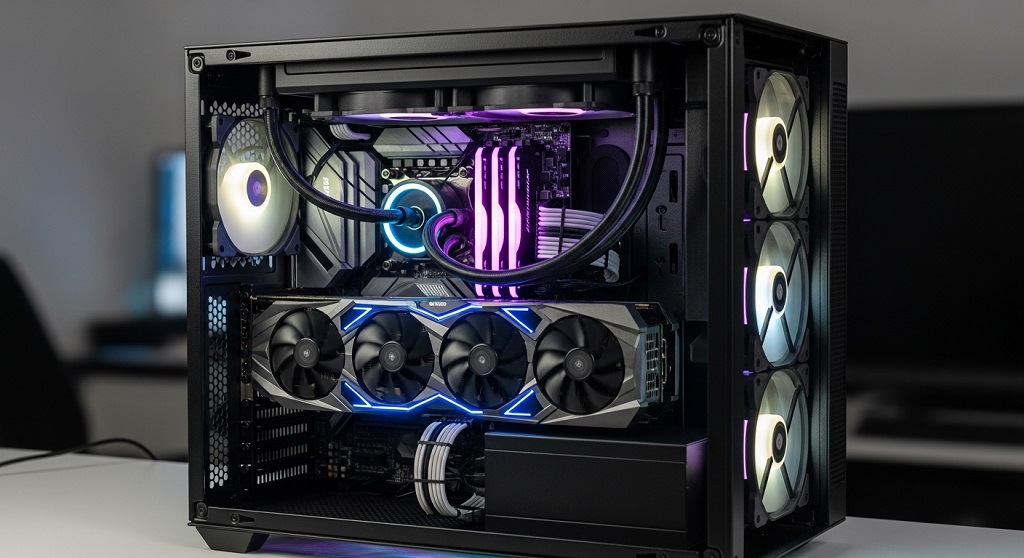
 Modern PC games in 2026 demand more from hardware than ever before. Higher-resolution textures, AI-powered rendering systems, and real-time physics simulations can quickly expose weak configurations. Even powerful systems often underperform because they are poorly optimized rather than outdated.
If your PC struggles with frame drops, stutters, overheating, or long loading times, optimization—not replacement—is usually the solution. Small adjustments across drivers, memory usage, storage configuration, and cooling can unlock dramatic improvements.
This guide explains exactly how to optimize your gaming PC step by step using methods that deliver measurable performance gains without unnecessary upgrades.
What Is the Fastest Way to Optimize a Gaming PC in 2026?
Snippet Answer: The fastest way to optimize a gaming PC in 2026 is updating GPU drivers, enabling game mode, activating XMP memory profiles, moving games to SSD storage, adjusting graphics settings intelligently, disabling background apps, improving airflow, and enabling hardware-accelerated GPU scheduling. These steps increase FPS, reduce stuttering, and improve stability immediately.
Many gamers assume performance gains require new hardware. In reality, software-level adjustments can increase frame rates by 15–40% depending on the system.
Start with GPU driver updates. Modern drivers include optimizations for newly released titles and AI-based rendering improvements. Always install the latest stable version rather than beta builds unless troubleshooting specific issues.
Next, enable operating system gaming features. Windows Game Mode prioritizes CPU and GPU resources for active gameplay while limiting background services.
Memory configuration also matters. Many systems run RAM below rated speed by default. Enabling XMP or EXPO in BIOS unlocks full bandwidth automatically.
Storage placement significantly affects load times. Running games from NVMe SSD storage instead of HDD reduces loading delays and streaming stutter during gameplay.
- Update GPU drivers
- Enable XMP or EXPO RAM profiles
- Activate Windows Game Mode
- Install games on NVMe SSD
- Disable unnecessary startup programs
These changes provide immediate improvements without spending money.
How Do You Optimize Graphics Settings for Maximum FPS?
Answer Block: Optimize graphics settings by lowering shadow quality, reducing volumetric effects, disabling motion blur, adjusting texture streaming, enabling DLSS or FSR upscaling, and selecting balanced presets. These changes increase frame rate significantly while maintaining visual clarity in modern 2026 game engines.
Graphics settings control how efficiently your GPU renders scenes. Not all settings affect performance equally.
Shadow quality is one of the largest performance drains. Ultra shadows often reduce FPS dramatically while providing minimal visual improvement during gameplay.
Volumetric lighting and fog effects also consume GPU resources heavily. Lowering these settings usually produces immediate performance gains.
Texture resolution should remain high if your GPU has sufficient VRAM. Lowering textures unnecessarily reduces image quality without improving performance.
Upscaling technologies such as DLSS, FSR, and XeSS are essential optimization tools in 2026 gaming environments.
- Disable motion blur
- Reduce shadow resolution
- Lower volumetric lighting
- Enable DLSS or FSR
- Keep textures high when VRAM allows
Balanced settings produce smoother gameplay than ultra presets in nearly every modern title.
Why Is SSD Storage Essential for Gaming Performance in 2026?
Answer Block: SSD storage improves gaming performance by reducing load times, preventing texture streaming delays, enabling faster world rendering, and supporting AI-assisted asset delivery systems used in modern game engines. NVMe drives provide the best results compared to SATA SSDs and traditional hard drives.
Storage performance directly affects gameplay responsiveness in open-world and multiplayer titles.
Modern games stream textures dynamically rather than loading entire environments at once. Slow drives cause visible pop-in and stutter.
NVMe SSDs deliver read speeds up to seven times faster than SATA SSDs. This difference becomes noticeable in large-scale environments and competitive shooters.
| Storage Type | Average Speed | Gaming Load Time | Streaming Stability |
|---|---|---|---|
| HDD | 150 MB/s | Slow | Low |
| SATA SSD | 550 MB/s | Moderate | Good |
| NVMe SSD | 3500+ MB/s | Fast | Excellent |
Installing your operating system and games on NVMe storage ensures smoother transitions between scenes and improved texture streaming performance.
How Does RAM Optimization Improve Gaming Performance?
Answer Block: RAM optimization improves gaming performance by increasing memory bandwidth, reducing latency, enabling dual-channel operation, activating XMP profiles, and preventing background application memory conflicts. Proper RAM configuration helps stabilize frame rates and eliminates stuttering in modern AAA titles.
Many gaming systems underperform because RAM runs below its advertised speed.
Activating XMP or EXPO profiles inside BIOS unlocks rated memory frequencies instantly. This adjustment alone can increase frame stability in CPU-intensive games.
Dual-channel configuration is equally important. Installing memory in matching slots doubles bandwidth compared to single-channel setups.
Background applications also consume memory unnecessarily. Closing unused browser tabs and startup programs frees system resources.
- Enable XMP or EXPO
- Use dual-channel memory
- Maintain at least 16GB RAM
- Prefer 32GB for modern AAA titles
Memory optimization reduces micro-stutters significantly during gameplay.
How Can Cooling Improvements Increase FPS Stability?
Answer Block: Cooling improvements increase FPS stability by preventing thermal throttling, maintaining consistent CPU boost clocks, improving GPU efficiency, and extending hardware lifespan. Better airflow, upgraded thermal paste, optimized fan curves, and dust removal all contribute to stable gaming performance.
Thermal throttling occurs when components reduce speed to avoid overheating.
This results in sudden FPS drops during extended gaming sessions.
Improving airflow inside your PC case is one of the simplest upgrades available.
Ensure front intake fans pull cool air inside while rear and top fans exhaust hot air efficiently.
Replacing old thermal paste can lower CPU temperatures by several degrees. This allows processors to maintain higher boost frequencies longer.
Cleaning dust buildup is equally important.
- Install intake and exhaust fans
- Replace thermal paste annually
- Adjust fan curves in BIOS
- Remove internal dust regularly
Stable temperatures directly translate into stable performance.
Which Windows Settings Should Gamers Change in 2026?
Answer Block: Gamers should enable Game Mode, disable background startup apps, activate hardware-accelerated GPU scheduling, adjust power plans to high performance, and disable visual effects in Windows. These system-level optimizations reduce latency and improve GPU resource allocation during gameplay sessions.
Operating system settings influence performance more than most users realize.
Game Mode prioritizes system resources automatically.
Hardware-accelerated GPU scheduling reduces input latency and improves rendering efficiency in supported GPUs.
Startup applications slow system boot and consume RAM continuously.
Switching to high-performance power plans ensures processors maintain maximum clock speeds.
- Enable Game Mode
- Disable startup programs
- Activate GPU scheduling
- Select high-performance power plan
- Disable unnecessary animations
These changes improve responsiveness across all games.
Should You Overclock Your CPU and GPU for Better Performance?
Answer Block: Overclocking improves gaming performance by increasing processor and graphics card clock speeds beyond factory settings. Safe overclocking combined with proper cooling can boost frame rates by 5–15 percent without hardware replacement when done carefully using stable voltage limits.
Overclocking allows hardware to operate above manufacturer default speeds.
Modern motherboards include built-in tuning utilities that simplify the process.
GPU overclocking typically delivers more noticeable gains than CPU adjustments.
Always test stability after applying new clock speeds.
Monitoring software helps prevent overheating during stress testing.
- Increase clock speeds gradually
- Monitor temperature continuously
- Test stability after each change
- Avoid excessive voltage increases
Safe overclocking provides measurable performance improvements when properly configured.
How Do Background Applications Affect Gaming Performance?
Answer Block: Background applications reduce gaming performance by consuming CPU cycles, RAM capacity, disk bandwidth, and network resources. Closing unnecessary software before launching games improves frame consistency, reduces latency spikes, and ensures system resources remain dedicated to active gameplay.
Many hidden processes run automatically when Windows starts.
These applications include update services, messaging platforms, browser tabs, and cloud sync utilities.
Even small processes accumulate resource usage over time.
Task Manager helps identify high-impact background programs quickly.
Disabling unnecessary startup entries reduces system load permanently.
- Close browsers before gaming
- Disable cloud sync temporarily
- Stop automatic update services
- Exit messaging applications
Resource prioritization ensures consistent performance during competitive sessions.
Conclusion: The Smartest Way to Maximize Gaming PC Performance in 2026
Gaming performance depends on optimization as much as hardware power. Many systems already contain unused performance potential that becomes available after proper configuration adjustments.
Updating drivers, enabling memory profiles, improving airflow, reducing background processes, optimizing graphics settings, and installing games on NVMe storage collectively produce dramatic improvements.
These steps increase frame rates, reduce input delay, eliminate stuttering, and extend hardware lifespan without requiring expensive upgrades.
If you apply the strategies explained in this guide today, your PC will run smoother, load faster, and stay competitive with modern gaming demands throughout 2026.
Start with driver updates and memory configuration first. Then move to cooling and storage upgrades for the biggest long-term performance gains.
FAQ: Gaming PC Optimization in 2026
How much FPS improvement can optimization provide?
Proper optimization can increase frame rates by 15 to 40 percent depending on system configuration, storage speed, cooling efficiency, and background application usage.
Is 16GB RAM enough for gaming in 2026?
Yes, 16GB remains sufficient for most games, but 32GB is recommended for AAA titles, multitasking setups, and future-proof performance.
Do SSDs increase FPS directly?
SSDs do not increase raw frame rates directly, but they eliminate texture streaming delays, reduce loading times, and prevent stuttering during gameplay.
Should Game Mode always stay enabled?
Yes, Game Mode improves system resource prioritization and reduces background interference during gaming sessions.
Is overclocking safe for beginners?
Overclocking is safe when done gradually with proper monitoring tools and adequate cooling solutions.
Do driver updates improve performance in new games?
Yes, GPU driver updates often include optimizations specifically designed for newly released titles.
What upgrade gives the biggest performance improvement?
Upgrading from HDD to NVMe SSD typically produces the most noticeable improvement in responsiveness and loading speed.
Read More Also: How to optimize your AI game companion for elite tactical support
Learn More: How to Improve Your Aim in Valorant Without High‑End Gear (Pro Tips)