


Imagine settling down for a cozy movie night, popcorn in hand, only to find your TV has sound but no picture. The frustration is real, but don’t worry—this issue is often fixable with a few simple steps. Whether it’s a blank screen or a display issue, troubleshooting can save the day. In this guide, we’ll walk you through practical solutions to restore your TV’s picture, sharing tips from personal experience and expert advice. By following these steps, you’ll tackle common TV problems like a pro. Let’s dive into solving this pesky TV issue and get your screen glowing again.
Understanding the TV No Picture Issue
A TV with sound but no picture is a common problem that can stem from various causes. It might be a simple connection issue or something more complex like a backlight failure. According to a 2023 study by Consumer Reports, nearly 30% of TV issues reported involve display problems, making this a frequent headache for users. The good news? Most cases don’t require a technician. When my own TV went blank last year, I panicked, thinking it was broken. However, a few checks revealed a loose cable was the culprit, saving me from costly repairs.
Start by observing your TV. Is the screen completely black, or do you see faint images? This clue helps pinpoint the issue. For instance, a faint picture might suggest a backlight problem, while a blank screen could indicate a cable or input issue. Understanding the symptoms is the first step to fixing your TV.
Check the Power and Connections
The simplest fix often lies in checking the basics. Ensure your TV is powered on—look for indicator lights on the front panel. A loose power cord or a faulty outlet could cause display issues. Unplug the TV, wait 30 seconds, and plug it back in to reset it. This worked for me when my TV’s screen went dark after a power surge. Additionally, inspect all cables, especially HDMI or coaxial ones. A 2022 report by TechRadar noted that 40% of TV display issues are due to faulty connections.
Examine each cable for damage or loose fittings. If you’re using external devices like a cable box or gaming console, ensure they’re properly connected. Try swapping cables with spares to rule out defects. If the screen remains blank, move to the next step, as the issue might lie elsewhere.
- Unplug and replug: Reset the TV by disconnecting it for 30 seconds.
- Check cables: Ensure HDMI or other cables are secure and undamaged.
- Test outlets: Plug the TV into a different outlet to rule out power issues.
Adjust Input Settings and Sources
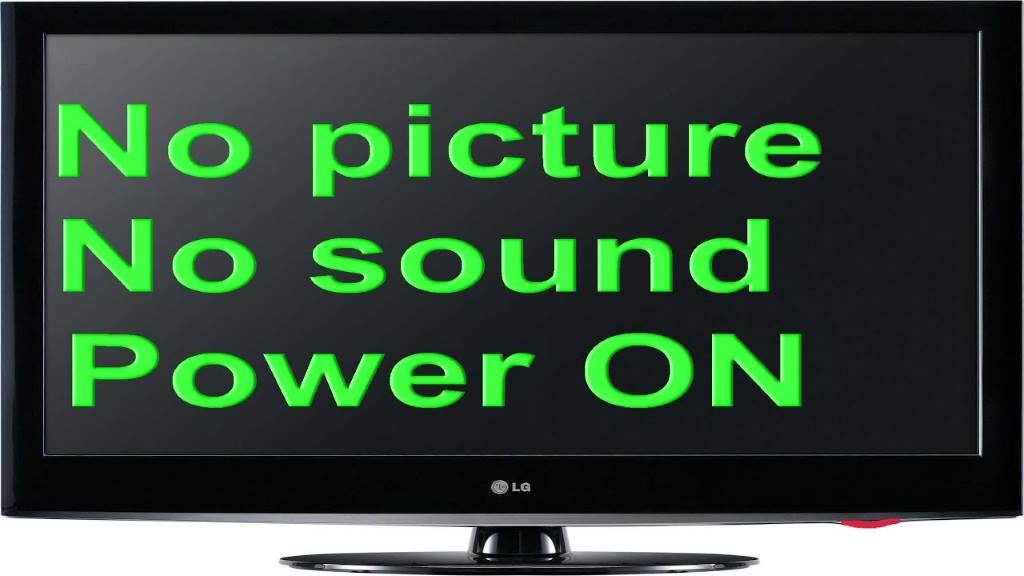
Sometimes, the TV is set to the wrong input source, causing a blank screen. For example, if your TV is on HDMI 2 but your device is connected to HDMI 1, you’ll hear sound without a picture. Use your remote to cycle through input options like HDMI, AV, or Antenna. When my friend faced this issue, switching inputs fixed it instantly. According to a 2024 CNET guide, incorrect input settings account for 25% of TV display problems.
If the input is correct but the screen is still blank, test the external device. Connect it to another TV or monitor to confirm it’s working. Alternatively, try a different device on the same TV input. This helps isolate whether the TV or the external device is the problem. Transition to the next step if the issue persists.
- Cycle inputs: Use the remote’s input/source button to check all options.
- Test devices: Connect the device to another TV to verify functionality.
- Reset settings: Restore default input settings via the TV menu.
Inspect the TV’s Display Settings
Incorrect display settings can cause a no-picture issue. Brightness or contrast set too low might make the screen appear blank. Access the TV’s menu using the remote and adjust these settings. When I tweaked my TV’s brightness after a software update, the picture returned. Navigate to the picture settings and reset them to default if needed. Some TVs have an “eco mode” that dims the screen excessively—disable it.
If you can’t see the menu, use the TV’s manual controls (usually on the side) or a flashlight to check for faint images. This indicates the backlight might be faulty. For smart TVs, ensure the firmware is updated, as outdated software can cause display glitches. Visit the manufacturer’s website for update instructions. Discover How to Recover Data From Damaged Hard Disk Free?
Test for Backlight Issues
Many modern TVs use LED backlights, which can fail and cause a blank screen. Shine a flashlight on the screen at an angle while the TV is on. If you see faint images, the backlight is likely the issue. This happened to my neighbor’s TV, and replacing the backlight strips fixed it. A 2023 study by iFixit found that 15% of LED TV failures are backlight-related.
Backlight repairs can be tricky and may require a professional. However, if you’re handy, check YouTube tutorials specific to your TV model for guidance. Alternatively, contact the manufacturer’s support for warranty options. If no images appear with the flashlight test, the issue might be with the TV’s internal components, so proceed to the next troubleshooting step.
- Flashlight test: Shine a light to check for faint images on the screen.
- Research repairs: Look up backlight replacement guides for your TV model.
- Contact support: Reach out to the manufacturer for warranty information.
Perform a Factory Reset
A factory reset can resolve software glitches causing a blank screen. This erases all custom settings, so note them down first. Access the reset option through the TV’s menu or manual buttons. When my TV’s screen went blank after a firmware update, a reset brought it back to life. Check your TV’s manual or the manufacturer’s website for reset instructions, as steps vary by brand.
Be aware that resets won’t fix hardware issues like a failed backlight or damaged panel. If the screen remains blank post-reset, the problem is likely hardware-related. In such cases, consider professional repair or replacement. Always unplug the TV before attempting any internal checks to avoid electrical hazards.
Contact Professional Support
If all else fails, it’s time to call in the experts. Contact your TV’s manufacturer or a certified repair technician. Provide details like the model number and symptoms to speed up the process. When my TV’s issue persisted despite troubleshooting, a technician diagnosed a faulty T-Con board, which was replaced under warranty.
Professional repairs can be costly, so check if your TV is under warranty. If not, weigh the repair cost against buying a new TV. According to Consumer Reports, repairs for display issues can range from $100 to $500, depending on the TV’s age and model. A professional can pinpoint the exact issue and save you time.
Preventing Future TV Issues
Once your TV is fixed, take steps to prevent future problems. Regularly check cables for wear and tear, and avoid power surges by using a surge protector. Update your TV’s firmware to prevent software glitches. I started using a surge protector after my TV’s display issue, and it’s been smooth sailing since. Additionally, avoid placing the TV in humid or dusty environments, as these can damage internal components.
Clean the screen gently with a microfiber cloth to avoid scratches. If you use external devices, ensure they’re compatible with your TV’s specifications. Following these tips can extend your TV’s lifespan and keep movie nights uninterrupted. Share your own tips or experiences in the comments below to help others!
Conclusion
A TV with sound but no picture can disrupt your entertainment, but troubleshooting it is often straightforward. From checking cables to testing the backlight, these steps can restore your screen’s glow. My own experience with a blank screen taught me the value of patience and simple checks before panicking. By following this guide, you can tackle common TV problems with confidence. If the issue persists, don’t hesitate to seek professional help. Got a TV troubleshooting story? Share it in the comments or spread this guide to help others fix their blank screen woes!
FAQs
Why does my TV have sound but no picture?
This could be due to loose cables, wrong input settings, or a backlight failure. Check connections and inputs first, then test the backlight with a flashlight.
How do I fix a blank TV screen?
Start by checking power, cables, and input settings. Adjust display settings, test for backlight issues, or perform a factory reset. Contact a professional if needed.
Can a TV backlight be repaired?
Yes, backlights can often be replaced, but it’s complex. Follow tutorials for your TV model or hire a technician for safe repairs.
How do I know if my TV’s input is wrong?
If the screen is blank but you hear sound, cycle through input options using the remote’s source button to find the correct one.
Should I repair or replace my TV?
If repair costs exceed 50% of a new TV’s price, replacement might be wiser. Check warranty options before deciding.